The initial launch of the Android app featured a bare-bones essentials version: it could find your local cemeteries and it could collect photos, but it couldn’t add cemeteries to the database while mobile (though we add cemeteries manually for any BillionGraves user who notifies us of an unrecorded cemetery). Since the release of the app, we’ve had some time to flesh it out a bit, and we’ll continue to add features and update the app in the Android Market whenever we have something new for you.
This update adds the Add a Cemetery feature to the Android app. It also includes a package of fixes we’ve put together for specific phone models that had unique requirements. Thank you to everyone who let us know about your phone’s quirks—without you we wouldn’t be able to improve the BillionGraves tool. If you’ve experienced any hiccups with the app when it’s running on your device, please contact the support team and let us know so our developers can continue to improve what we have to offer.
11 July 2011
08 July 2011
Deciphering Swedish Stones
You may have noticed that there are a lot of headstone photos being collected in Sweden. If you don’t understand Swedish, these photos may be too baffling to transcribe—and if you’re like me, you don’t like having to skip a photo just because of something as silly as a language barrier.
Thankfully, one of our Swedish users has sent in a few tips to help non-Swedish speakers so we can skip fewer headstones and learn something new about Sweden’s graves.
There are a few acronyms to be aware of:
In the comments on an earlier post, Transcribing Tips & Tricks, a Danish-speaking user also gave a few pointers on Swedish words (Danish and Swedish have several linguistic similarities).
If you have any other tips about Swedish graves, post them in the comments below. If you have tips about your local graves’ quirks, please email them to kristy.stewart (at) billiongraves.com and I’ll put together a post about your area. It’ll help everyone learn something new, and it will get the photos transcribed and searchable more quickly (and more accurately). Do graves in your country (or local area) tend to be grouped into family plots, like the Swedish familjegrav? Is there a tradition of using family mausoleums? Unique ways of formatting names? We’d be happy to have whatever tips or tidbits of information you’d like to share with us.
_________________________
All photo examples are taken from Norra begravningsplatsen in Sweden.
Thankfully, one of our Swedish users has sent in a few tips to help non-Swedish speakers so we can skip fewer headstones and learn something new about Sweden’s graves.
There are a few acronyms to be aware of:
 |
| Here, här vilar is written out. |
- H.v.: This stands for här vilar, which in means here rests.
- F.: This stands for född, which means born. It’s equivalent to née in English. In English, to indicate a maiden name (the name someone is born under), you would write someone’s current first and last name, then née and the maiden name (ex. Laura Jameson née Smith would be a woman who, when she was born, was named Laura Smith). In Sweden, född is used the same way, with född in place of née (Laura Jameson f. Smith). (Trivia for English speakers who didn’t already know, née is French for born, so its use in English is identical to the Swedish word: född and née are the same idea, just communicated with different sounds.)
 |
Axel was a medical officer; Frida’s maiden name is Nordin. |
- Hustrun (and variations) means wife.
- Makan (and variations) means companion or spouse.
- Familjegrav indicates that the headstone actually marks a family plot, not one particular head (it sounds a lot like family grave if you say it right). These family plots are very common in the photos that have been collected.
- A big long word in front of a man’s name probably indicates his profession. (This is why I like to keep Google Translate open when I’m doing transcriptions in languages I don’t know. It increases my chances of not skipping a photo.)
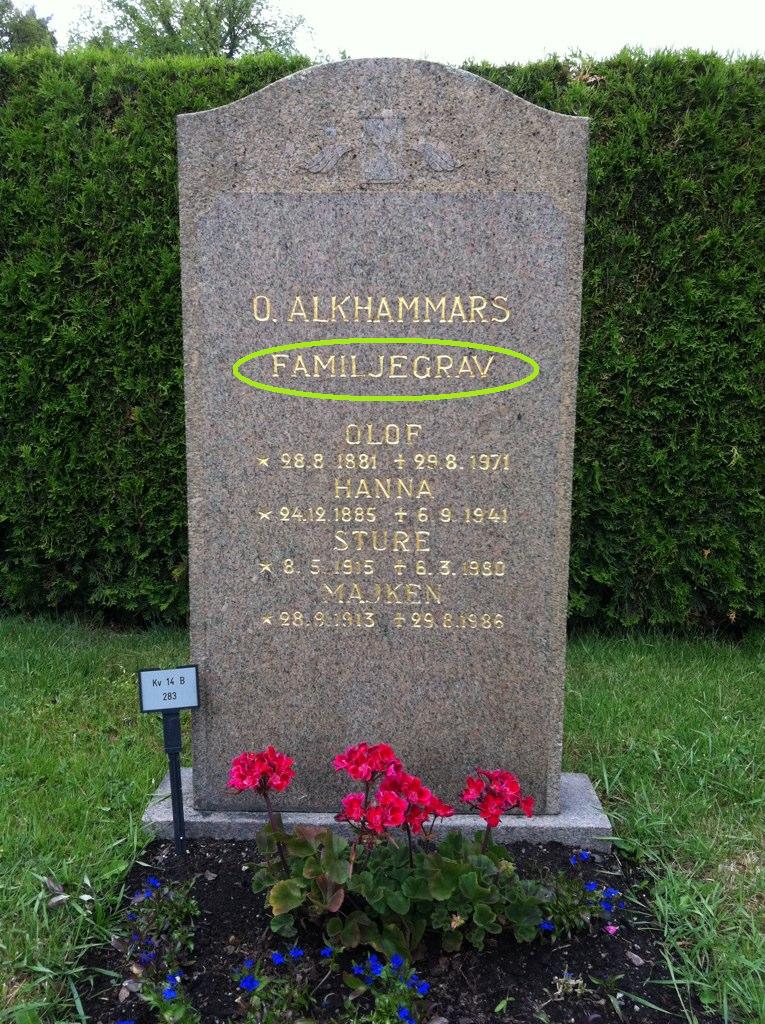 |
This familjegrav lists individuals; some don’t. |
_________________________
All photo examples are taken from Norra begravningsplatsen in Sweden.

05 July 2011
Smartphones in the Summer Swelter
This weekend many of you went out and collected cemetery photos, and speedy transcribers have already made many of those photos searchable. (There are still about 2800 photos—go transcribe!) Some of the photo-collectors may have run into some of the hiccups we hit over one of our state’s hottest weekends this year. Namely, in the heat of the summer sun, an iPhone tends to get warmer than it likes, especially if it’s constantly updating its GPS position.
When your iPhone is overheating, the screen will grow progressively dimmer until it is very difficult to see anything on it. If you ignore this warning sign (or don’t know what it means), your phone will eventually alert you to the problem. If you stop using your phone for a few minutes and go into some shade or indoors, it’ll cool off fairly quickly and be ready to go again.
The problem of overheating may extend to Android phones as well, though currently we’ve only experienced it on iPhones, and only during our recent high temperatures. So while you’re out mapping cemeteries in the summer sun, be aware that some phones (especially those with black cases) may be struggling a bit in the heat, and give your phone a break when it needs it.
30 June 2011
Server Switch Tonight
Tonight between 9:00 and 10:00 p.m. MDT (GMT-6), BillionGraves.com will take a short break from service and migrate to a new server. This server will be faster and larger than our current server, and it will be very easy to increase its size to accommodate the growing photo and record database indefinitely into the future. During the move, your contributions will be safe and all the information will be retained. The only difference is that we’ll be better able to preserve your future contributions and continue to make them available to your fellow researchers.
If you’re out collecting photos during that time frame and try to upload them, the upload will fail, but the photos will still be on your phone. Wait out the server switch (it shouldn’t take too long) and try the upload again later. Once the new server is ready, the upload will go through and we’ll add your photos to the database.
Thank you for your patience during the move. It’ll be only a short break, and then the site will be up and running once more. The new server will be a better home for for your contributions.
If you’re out collecting photos during that time frame and try to upload them, the upload will fail, but the photos will still be on your phone. Wait out the server switch (it shouldn’t take too long) and try the upload again later. Once the new server is ready, the upload will go through and we’ll add your photos to the database.
Thank you for your patience during the move. It’ll be only a short break, and then the site will be up and running once more. The new server will be a better home for for your contributions.
29 June 2011
Transcribing Tips & Tricks
Transcribing photos on BillionGraves is a fairly simple process. You put as much information as possible into the appropriate fields (Given Names, Family Names, etc.), and you then put anything that doesn’t fit into the free-text boxes that appear after you click “Add Description.” There are instructions on how to handle special cases on our transcription help page. Overall, it isn’t tricky. But there are a few things you can do that will make transcribing even easier.
Foreign Grave Markers
First, if you don’t know the language of the headstone and aren’t familiar with the way it is laid out, pull up Google Translate or some other quick reference. While transcribing Swedish headstones, I discovered that “hustrun” is not an extremely common given name, but rather a title meaning “wife” (it may also be in the possessive case, Google isn’t clear on that, but it clarifies that it is not a given name, and that’s what I as a transcriber need to know). There are still many headstones that aren’t in my native English that puzzle me—which is why I take advantage of the “skip image” function. If it’s a headstone from a country foreign to me, I know that there is at least one person registered with BillionGraves who understands the area, because he or she uploaded the photo in the first place. As more people participate in the BillionGraves project, the number of people who understand diverse grave marker types and languages will grow, and they can help with markers that may not be familiar to you. (You’re helping others right now, by transcribing the photos that make sense to you.)
Transcribing Shortcuts
First, if you don’t know the language of the headstone and aren’t familiar with the way it is laid out, pull up Google Translate or some other quick reference. While transcribing Swedish headstones, I discovered that “hustrun” is not an extremely common given name, but rather a title meaning “wife” (it may also be in the possessive case, Google isn’t clear on that, but it clarifies that it is not a given name, and that’s what I as a transcriber need to know). There are still many headstones that aren’t in my native English that puzzle me—which is why I take advantage of the “skip image” function. If it’s a headstone from a country foreign to me, I know that there is at least one person registered with BillionGraves who understands the area, because he or she uploaded the photo in the first place. As more people participate in the BillionGraves project, the number of people who understand diverse grave marker types and languages will grow, and they can help with markers that may not be familiar to you. (You’re helping others right now, by transcribing the photos that make sense to you.)
Transcribing Shortcuts
Once you’ve made sure you can understand all necessary information on the stone, there’s nothing to stop you from quickly filling out the form and moving on to the next photo. But if you happen to dislike using your mouse, we’ve set up a several keyboard shortcuts for you to make the process faster for the mouse-averse. We mentioned two of them before, but we’ve added many more since then. This is a complete list of our current shortcuts:
- Add an Individual: CTRL + I
- Open the Description Box: CTRL + D
- Rotate the Image: CTRL + R (rotates the image 90 degrees clockwise)
- Zoom In on Image: CTRL + +
- Zoom Out from Image: CTRL + -
- Scroll Image Up: CTRL + Up arrow
- Scroll Image Down: CTRL + Down arrow
- Scroll Image Right: CTRL + Right arrow
- Scroll Image Left: CTRL + Left arrow
- Save the Transcription: CTRL + S
- Go to Next Image: CTRL + M
Reporting Photos
When a photo is impossible to transcribe, either because the photo is bad, the stone is too worn, there’s nothing to transcribe, or it’s in a language that isn’t supported yet, remember that you can report the image by clicking the red button beneath it (sorry, no shortcut for this). You can then select the reason you’re reporting the image and it will be sorted so we can take a look and decide what the best solution is for each photo.
If you have any tips for your fellow transcribers, please post them in the comments.
27 June 2011
Top the Leaderboard: Track Your Stats
The Android app isn’t the only thing we’ve been building over the past few weeks: we’re also improving the way we track photos, records, and cemeteries. A lot of what we’ve done keeps the database running smoother and you’ll never have to see it. But one fun part about our tracking everything is we can now acknowledge those of you who have participated above and beyond expectations. Yesterday we launched the BillionGraves Leaderboard (you’ll need to be logged in to see it; there’s also a link to it from your dashboard).
 Click on the photo to enlarge the board for June’s leading transcribers and photo collectors (as of 10:10 AM MDT). A special congratulations to Catirrel and trishkovach, who each are currently topping either the photo or the transcription list. And an extra thank you to crex and Hokie374, who both are into the Top 10 for both categories.
 Click on the photo to enlarge the board for June’s leading transcribers and photo collectors (as of 10:10 AM MDT). A special congratulations to Catirrel and trishkovach, who each are currently topping either the photo or the transcription list. And an extra thank you to crex and Hokie374, who both are into the Top 10 for both categories.
The Leaderboard results can be viewed according to the current month or all time, and they update constantly. It’s not much, but it’s our small way of recognizing everyone who is working so hard to contribute to the BillionGraves project.
In addition to the Leaderboard, we’ve made several subtler improvements to existing aspects of the site.
Report Images
For transcribers, there’s now a much improved Report Image function. If you click the red button beneath a problem photo, you’re given several options as to the reason why you’re reporting the photo (this helps us know what to do with it):
- This photo is blurry or unreadable: For poorly taken photos that need to be redone.
- The headstone is unreadable: For headstones that are too hard to decipher.
- This isn’t a headstone!: Just in case something that isn’t a grave monument gets past our image checker.
- There’s no information to transcribe: For monuments or photos that don’t contain anything you can transcribe.
- Non-Latin characters (Arabic, Chinese, etc.): For monuments with non-Latin letters. In the future these will be supported, so we want to keep these stones separate for future transcribing.
- Other: Because we can’t think of everything.
Before you mark a photo or stone as unreadable, please make sure it actually is. There are many photos and stones that may be less than ideal, but are still legible with a bit of zooming, squinting, and informed thinking.
Shortcut Keys
In case you aren’t already aware, I want to let you know about our shortcut keys for transcriptions. CTRL+S will save your transcription and CTRL+I will add an individual. We plan to add even more of these so transcriptions can be as quick and easy as possible.
Add an Individual to a Saved Transcription
There have been a few instances in which a transcription was saved before all the individuals in the photo were recorded. Unfortunately there was no way to add an individual after saving. That has been remedied, so you can now add individuals regardless of where you are in the transcription process.
Basic Error Checking
We’ve introduced some basic error checking (someone’s birth or death date cannot be recorded as tomorrow, for example). We intend to make these more sophisticated as we go along so we can improve the quality and accuracy of BillionGraves transcriptions.
Thank you to everyone who has already downloaded the Android app this weekend and started using it. You’ve given the swift-fingered transcribers a lot more to do.
Thank you to everyone who has already downloaded the Android app this weekend and started using it. You’ve given the swift-fingered transcribers a lot more to do.
24 June 2011
Now Available for Android
 For everyone waiting on the Android app, it’s here! The app is free in the Android Market (and it will be in the Amazon Appstore for Android very soon). The app has all the essentials: it will find cemeteries that are close to you and you can collect and upload photos to your heart’s content. The Android camera is speedier than the iPhone’s, so mapping out a cemetery is even more efficient.
Getting this out to you took us a little longer than we wanted it to, but that’s because Android devices vary so widely. We tested it on all the devices we could possibly get our hands on. The app only works with phones that have true GPS systems. At the bottom of this post is a list of the phones we know it will work on, as well as those we know it won’t. If your phone isn’t on either the Yes or No lists, we either weren’t able to test it or we couldn’t get a straight answer from the producers’ product help desk (phones we know of but aren’t sure about are in the Maybe list). If you download the app and you find that it doesn’t work on your phone, please contact our support team and tell us what went wrong, what type of phone you have, and what version of the Android OS your phone uses. Then we can either fix the problem with your phone or, if your phone does not use true GPS, add it to the appropriate list. Please also let us know if it does work if your phone isn’t already on the Yes list: we’d love to add it.
 Once you’ve downloaded the app and it’s working for you, remember that the same photo-collecting rules apply:
- Avoid casting partial shadows on the stone. The dark shadow against the light stone can make it unreadable.
- Clear everything that is covering the headstone information. Move flowers and such away from the stone. You can always put them back. Just in case grass clippings or dirt are on the stone, you may want to bring a soft brush of some sort to clean the stone. (Don’t scrub stones or use anything abrasive; you may damage the stone.)
- Include all the headstone’s information in the photo frame—even if the words seem to small on the preview. Remember, there is a zoom function on the website now, so even small words can be magnified. It’s more important to get all the information available.
- Try to take photos in the mornings or evenings. Direct sunlight can make collecting photos problematic. It’s not always feasible to avoid the sun, but if you have a choice, choose a time with more indirect sunlight.
If you’re planning to spend more than an hour or two collecting photos, bring a portable charger. The app is constantly updating your GPS location so it can get the best tag possible, and that tends to wear on the battery a bit. But with a little foresight this isn’t much of an issue.

And now for the device list. To see if your phone works, look in the Yes list for your phone’s producer (Samsung, LG, etc.) and then look for your phone model. If it’s not there, look in the Maybe and No lists.
Yes, it works
HTC
HTC Sensation™ 4G.
Droid Incredible 2
HTC Thunderbolt
G2 by HTC
HTC EVO™ 4G
HTC Aria
HTC Incredible
Samsung
Samsung Galaxy Indulge
Samsung Galaxy Prevail
Samsung Epic™ 4G
Samsung Fascinate
Motorola
Droid 2
Droid X
CLIQ 2
Citrus
i1
Kyocera
Echo
Zio
Sony Ericsson
----
LG
Revolution
Ally
Optimus C
Optimus M
Optimus U
Optimus S
Optimus T
Optimus V
Vortex
T-Mobile
Garminfone
-----------------------------------------------------------
It might work (please try it out)*
HTC
myTouch® 4G
HTC Desire
HTC Hero
HTC Wildfire
Samsung
Nexus S
Nexus S 4G
Galaxy S™ 4G
Samsung Captivate
Samsung Showcase
Samsung Vibrant
Samsung Acclaim
Samsung Continuum
Samsung Mesmerize™ i500
Samsung Gem (verizon)
Samsung Transform
Motorola
ATRIX 4G
Defy
Bravo
Charm
Flipout
Flipside
Backflip
CLIQ
Cliq XT
Droid Pro
XPRT
Kyocera
----
Sony Ericsson
Xperia Arc
Xperia Neo
Xperia Pro
Xperia X10 Mini
Xperia X10 Mini Pro
Xperia X8
LG
----
T-Mobile
-----------------------------------------------------------
No, it doesn’t work
HTC
myTouch 3G (Slide and non slide)
T-Mobile G1
Samsung
Droid Charge
Samsung Dart
Samsung Gem (generic)
Samsung Gem (us cellular)
Samsung Gravity
Samsung Indulge
Samsung Infuse
Samsung Intercept
Samsung Replenish
Samsung Showcase™ i500
Motorola
----
Kyocera
----
Sony Ericsson
----
LG
Apex
Axis
Fathom
Genesis
Thrive
T-Mobile
----_________________________
*Most of these “maybe” devices use what is called assisted GPS. Assisted GPS can mean dozens of different things, and some versions of assisted GPS work while others don’t. Occasionally it will take a little longer to get a GPS lock with assisted GPS, so be patient if it doesn’t get a lock right away.
Subscribe to:
Posts (Atom)